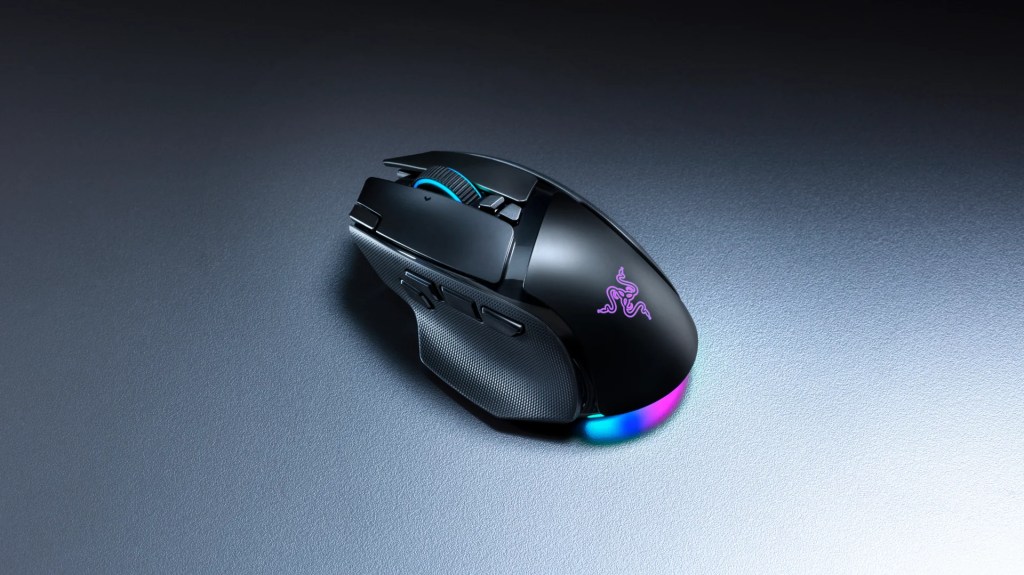
The old adage is that you shouldn’t fix what isn’t broken, and that’s pretty much the approach Razer has taken with the Basilisk V4 Pro’s general shape and feel. As someone who uses the standard wired Basilisk V3 every day and loves it, I’m quite happy about that, and it’s very fitting for a product that literally has the words ‘version 4’ in its name. The awkward part is that my old mouse already felt accurate, responsive and comfortable. The V4 Pro is a fantastic mouse in its own right, but at £169.99 it has to offer a fair bit to make replacing an existing Basilisk worthwhile.
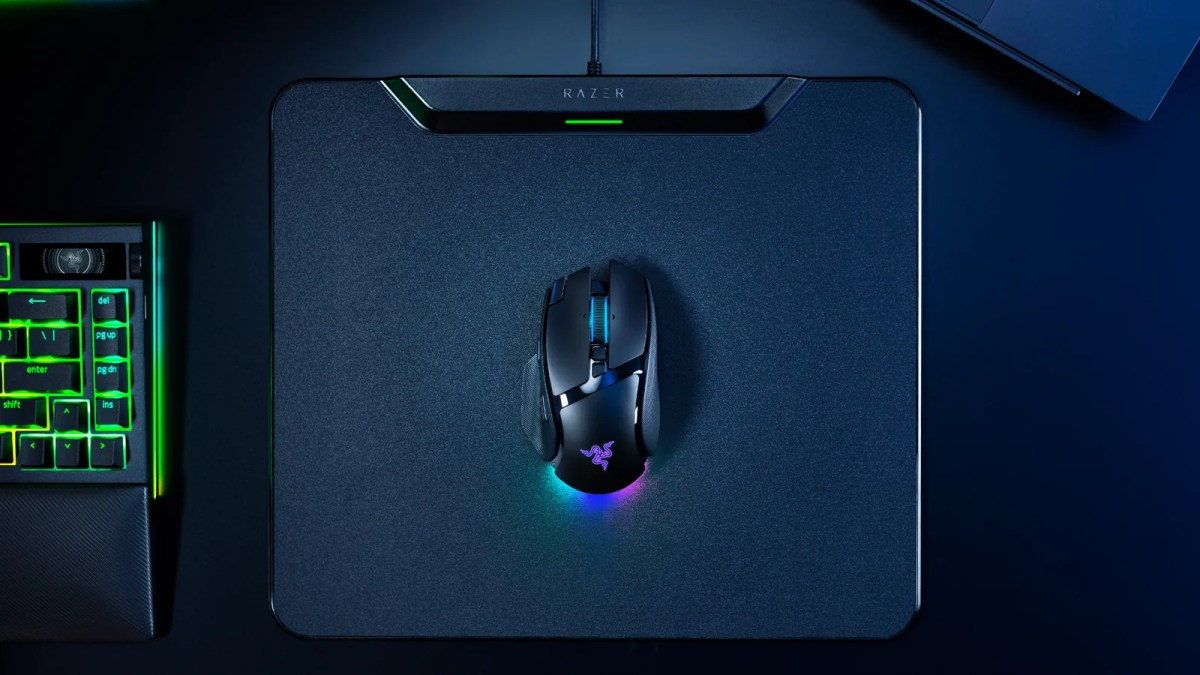
The left side still sports that fancy wing for your thumb to rest on its mighty laurels, and the angular front and rounded body remain familiar. There are small changes: the main click panels no longer wrap down the sides slightly, and a few angles and joins are different. Depending on your grip, those might matter, but with my normal palm grip it feels largely identical to the previous Basilisk. It was comfortable before, and it’s comfortable now.
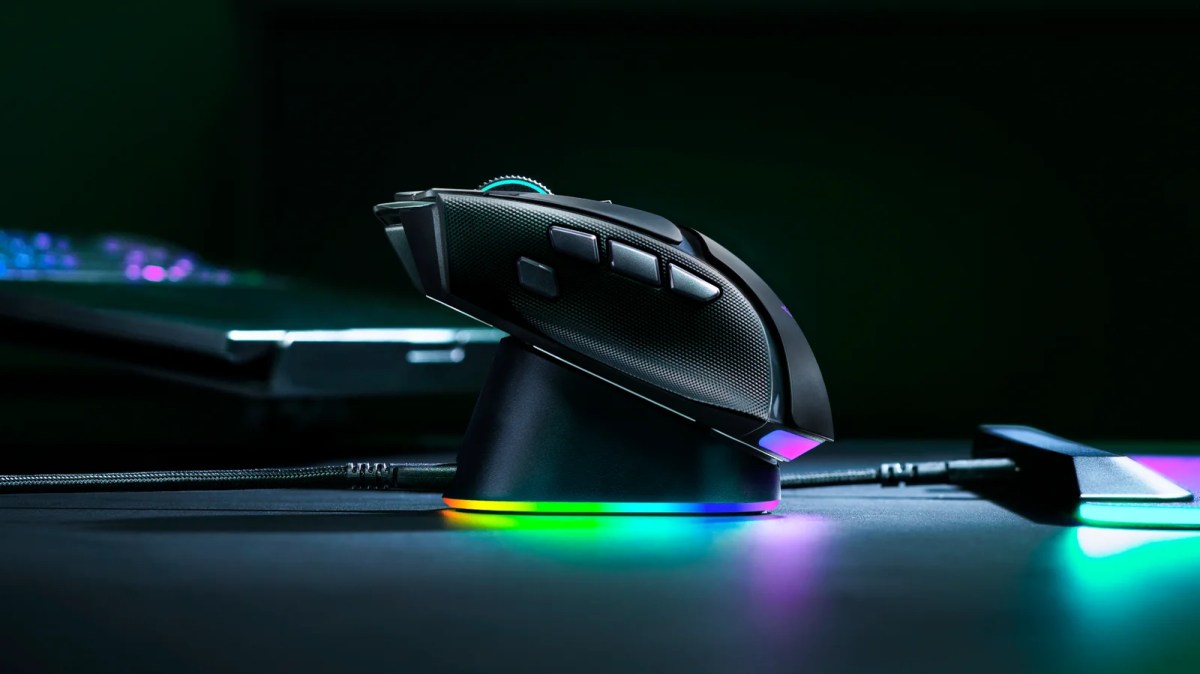
Razer has squeezed some extra controls onto this little beast, bringing the advertised total to 14. That’s programmable controls, including scrolling and tilting the wheel, rather than 14 separate buttons scattered around the shell. The two horizontal side buttons have become three, with the separate multi-function trigger giving your thumb four controls in total. The rear two remain easy to use for forward and back when browsing, and I can reach the third with the tip of my thumb after a small grip adjustment. The fourth sits farther forward, though, and doesn’t fall naturally within reach of my small hands. Razer describes its position as more accessible, but my petite hands call it doing yoga.
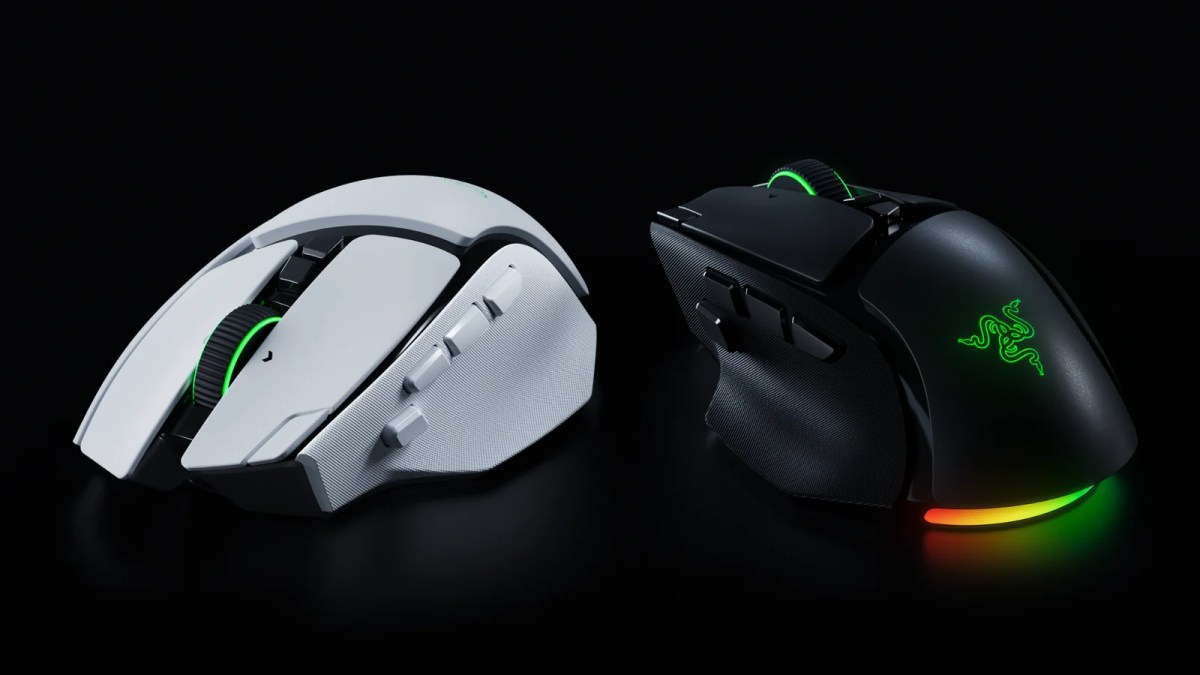
The V4 Pro Comes In Black Or White
The buttons themselves feel great. The main optical switches have a satisfying click, with the left and right sounding pleasingly consistent. The side controls feel good too, and I haven’t had any accidental presses, which is always a good sign. Build quality feels much like my V3 which has survived multiple years of abuse, so I don’t have any real concerns about it giving up and collapsing into a heap of expensive plastic.
The rubber coating on both sides also feels familiar, which worries me more. My V3’s grips wore down quickly. I can’t predict the V4’s durability after only a short time with it, but I’d have liked a more reassuring change there. For a palm-gripper like myself, the grips wearing down isn’t that bit of a problem, but a claw-grip user might find it more annoying.
At approximately 100g, this isn’t an ultra-light mouse, and I’m happy with that. I understand the appeal of lighter models, especially for large movements at low sensitivity, but I like having a little weight in my hand. Razer’s advertised 12g saving is against the wireless V3 Pro 35K, which weighs 112g. My wired V3 is around 101g excluding its cable, so getting wireless operation into much the same weight is the more relevant change for me. All that said, if you suffer from wrist strain, a lighter mouse can be a good udea.
Underneath, a removable plastic puck covers the dongle compartment and can be replaced with the appropriate wireless-charging puck. The compartment holds the tiny USB-C dongle without the USB-A adapter that also comes in the box. I’d prefer room for the adapter too, but it’s a small complaint.
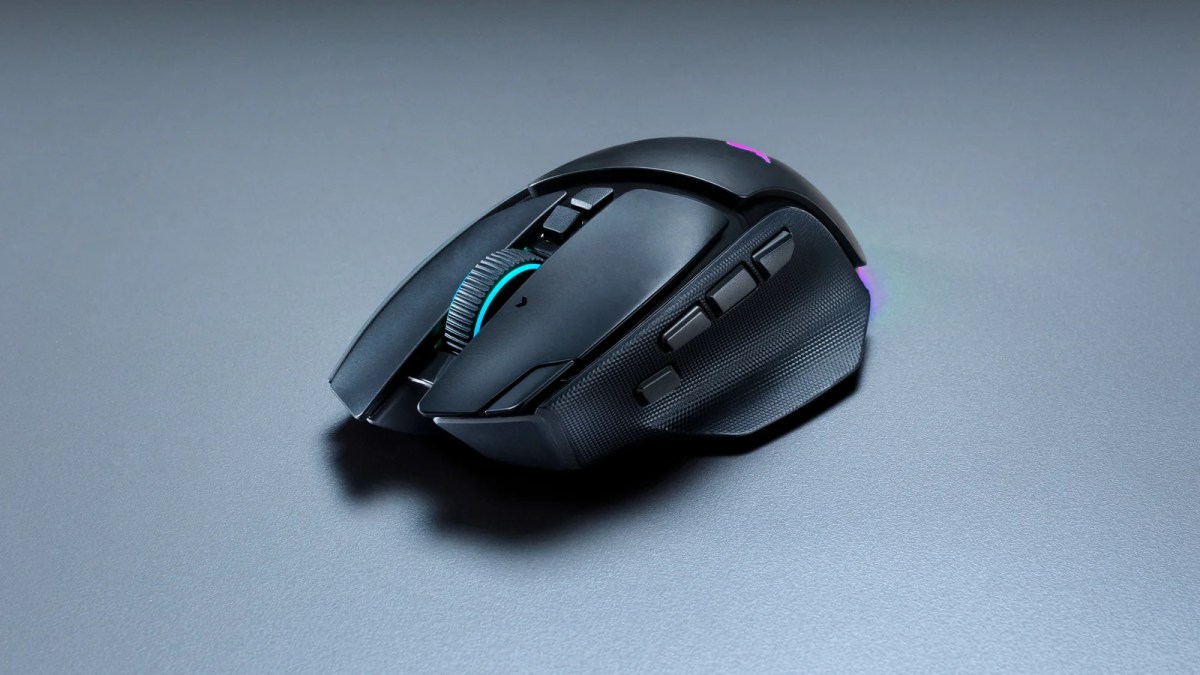
If 14 programmable buttons are not enough and you need more assignments, the Hypershift clutch gives you a second layer while you hold it down, reverting when you release it. You can assign another mouse button to do the same job, too, of course, and can just remove the Hypershift mapping entirely if you like. I’ve never wanted that many commands mapped to my mouse, but it’s a useful way to expand your options without adding more physical buttons.
The scroll wheel offers one of the most immediately enjoyable improvements. Alongside the familiar tactile and free-spin modes, Precision Tactile doubles the steps around a complete rotation from 24 to 48. The notches are closer together, giving you more individual clicks for the same movement. It feels excellent. Free-spin remains fantastic for getting through long webpages and documents quickly, too. And also just to sit and spin like it’s a bloody fidget toy.
I’m still less keen on Smart-Reel, which switches between tactile and free-spin automatically according to scroll speed. You can adjust its responsiveness in Synapse, but sometimes it switches when I didn’t want it to. I like sending a page flying when I choose to; having the wheel make that decision is less appealing. Thankfully, it’s optional. Instead, you can just have one of the buttons mapped to switch between tactile and free-spin at will.

Razer has always been very… er, enthusiastic about applying RGB to everything, which makes the revised lighting a curious step backwards to me. My wired V3 has 11 zones, with a thin strip around the lower edge creating its underglow, basically making it look like the kind of car teenage me always made in Need For Speed: Underground. The V4 Pro drops to seven zones, mostly concentrated in a thicker rear lightbar that’s almost entirely covered by my palm grip. With that covered and the Razer logo hidden beneath my palm as well, the only visible RGB is on the scroll wheel. You might prefer the subtler effect if you don’t enjoy having a disco in your hand, but I miss the old arrangement. Yes, I know, RGB and gaming has a long and sordid history, but I kind of like having a personal light display, okay?
Connectivity is generous: USB-C wired play, the included HyperSpeed Wireless Gen 2 receiver, and Bluetooth pairing for up to three devices, selected using the underside connectivity button. Counting wired operation makes this Razer’s five-way connectivity. The wireless connection has been flawless in my use, with no noticeable issues, and I honestly couldn’t tell from using it that the mouse wasn’t wired. Coming from my wired V3, that’s a huge compliment. And it wasn’t like the HyperSpeed Gen 2 was given an easy task: I have multiple other wireless devices running on the same computer and a bunch of other signals flying around the place, so there has been plenty of chances for interference. Despite that, it never once lost connection, lagged or even coughed gently. Good job.
Most of the other changes are under the hood. The Focus Pro 50K Optical Sensor Gen 3 supports up to 50,000 DPI, with Razer rating its tracking speed at 930 inches per second and acceleration at 90G. DPI describes movement counts for a given distance; the other figures describe how quickly you can move and accelerate the mouse while it maintains tracking. My original V3 tops out at 26,000 DPI, 650 IPS and 50G, for comparison. The later V3 35K revisions use a 35,000-DPI sensor, so the size of the specification jump depends on which Basilisk you’re comparing. Whichever one you compre against, it’s a fairly good performance jump.
The Pro supports up to 8,000Hz polling wired and wirelessly out of the box. That’s the interval between reports, rather than the total time between moving the mouse and seeing the result on screen. Frame Sync coordinates sensor scanning with those reports so the movement data is captured closer to when it’s sent to your PC, which Razer says reduces motion latency and improves battery efficiency.
Those are sizeable increases on the specification sheet, but the law of diminishing returns is firmly at work. I’d be lying if I said I noticed drastically improved precision or speed over my V3, which already kept up and felt accurate. A higher maximum DPI isn’t automatically greater accuracy, either, and I struggle to imagine needing anything close to 50,000. Perhaps an ultra-competitive Counter-Strike god whose career depends on tiny differences in input response would get more out of all the improvements. I’m just here trying to pretend I have the same shooter reflexes I had when I was a teenager playing CoD. I do not. As a result, I can’t honestly tell you this mouse feels better on a technical level, even though it fundamentally is better on paper.
Battery life has met my expectations, although I haven’t done a timed rundown test. Razer claims up to 200 hours on HyperSpeed and 275 hours on Bluetooth, but the first figure is at 1,000Hz, rather than the full 8,000Hz. You shouldn’t read the longest runtime and highest polling rate as simultaneous benefits. Personally, I’d happily prioritise battery life over maximum polling. Synapse also offers automatic polling-rate switching when an application enters full-screen mode, which is separate from Frame Sync. I usually stick at 4,000Hz polling, in a bid to find a balance between battery life and raw performance. I feel like 200 hours is a generous claim, but battery life was still more than good enough.
Synapse itself is mostly fine. Remapping buttons is straightforward, and the macro editor offers a good range of tools for recording or manually building sequences. I haven’t had any issues with the macros I’ve tried, and they can be used without Synapse. Linked Games can automatically select a profile when a game launches, too, although it missed plenty of my installed games; you can scan again or add them manually.
Mouse Rotation is another useful option. It compensates for the angle at which you hold the mouse by adjusting how sensor movement is interpreted. I set a four-degree offset and deliberately angled the mouse: movement that would otherwise drift sideways stayed straight. Straightening the mouse again produced the opposite effect, making the adjustment easy to see. I normally hold mine fairly straight, so I don’t need much correction, but it works.
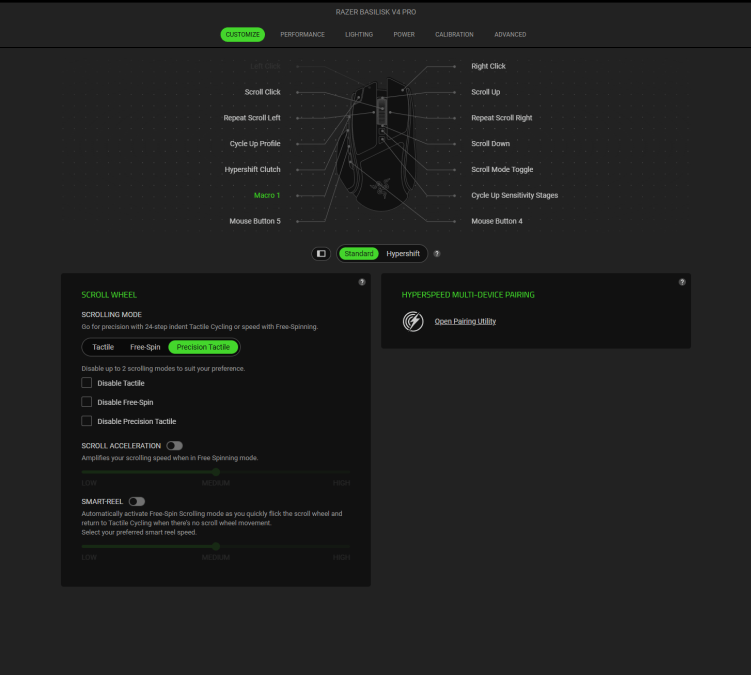
Manual profile switching has moved from the V3’s dedicated underside button to the programmable M1 edge button beside the left click. If you want that function, it occupies a control you could otherwise assign to something else. The onboard memory has four assignable slots plus a hybrid slot for your last-used software profile, and creating a profile in Synapse isn’t the same as saving it to one of those slots. Once mine were assigned properly, switching and DPI changes worked with Synapse closed, and empty slots were skipped. My tested macros worked after exiting it too. Being able to configure the mouse and then mostly use it with Synapse uninstalled is a definite positive for me.
The lighting limitation still annoys me. I assigned matching static colours to my test profiles so I could identify them at a glance, but with Synapse closed the mouse continued spectrum cycling. Razer says lighting effects aren’t stored onboard, a distinction the software doesn’t make especially clear. Wanting red for one profile and blue for another isn’t an unreasonable demand, and it shouldn’t need a background application just to remember my choice.
Razer also offers browser configuration through Synapse Web, but the V4 Pro isn’t currently listed among its supported devices. That’s a bummer, because handling setup in a browser would spare people downloading the whole desktop package. It’s not that Synapse is particularly bad, but people are rightfully annoyed at requiring a million different apps to be installed for everything these days, and Synapse is yet another thing soaking up system resources.
But the good news is the vast majority of features don’t require Synapse, so you can download it, get some profiles set up, mess around a little and then delete the software entirely.
Perfect 180 is one of those that requires Synapse running, though, and is designed to turn your character around with a button press, configured for your game settings. It isn’t something I need, and Razer warned during the briefing that automated actions like this may breach competitive games’ rules.
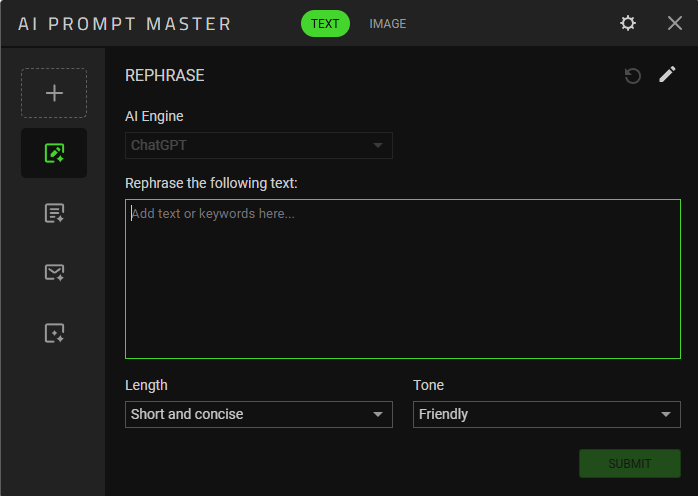
Then there’s AI Prompt Master feature. It offers basic templates that wrap your text in very simple instructions before placing the assembled prompt into an AI chat window; in my setup, the service was ChatGPT. The ‘Rephrase’ option imported highlighted text automatically when I hit the button, but Summarize didn’t during my attempts, removing much of the convenience from an obvious use. Someone repeatedly performing the same task might save a few steps, I guess. I struggled to see why I’d use this instead of opening ChatGPT myself.
The AI Prompt Master image feature was even more hilarious. Open it, write up your text and hit the send button, and all it does is add ‘Create an image of’ to the beginning of your text and then ends your text with ‘in X style.’ Then left me to press send in ChatGPT. Very helpful, Razer. Not.
Calling this Prompt Master feels ambitious. I’ve remapped the AI button to a screenshot shortcut instead, which has been exceptionally useful when reviewing games because now I don’t have to paw at my keyboard like a confused Spaniel. That’s an extra control earning its place on my mouse.
Let’s talk accessories, shall we? The optional new Mouse Dock V2 Pro combines magnetic charging with an integrated 8,000Hz receiver and the compatible charging puck. It can pair a compatible keyboard alongside the mouse to free up a USB slot, but the Pro’s included receiver already offers that sharing and the 8K polling. I haven’t tested the dock; at £69.99 separately, I think it’s overpriced for what is essentially a glorified wireless charger. The current mouse bundle adds it for £40, which is easier to consider. It’s a colourful parking space with a Razer tax attached, and yet annoyingly I’m still tempted.
The cheaper Basilisk V4 HyperSpeed costs £109.99. I haven’t tested it, but Razer’s specifications show the main differences below. Yes, HyperSpeed is also the wireless technology’s name, including on the Pro. Thanks you for making things extra confusing. I have enough problems remembering the names of things without your help, Razer.
| Main difference | Basilisk V4 Pro | Basilisk V4 HyperSpeed |
|---|---|---|
| Price | £169.99 | £109.99 |
| Body and weight | Right-handed, thumb rest; approx. 100g | Same listed dimensions and broad shape; approx. 94g |
| Sensor | Focus Pro 50K Gen 3; up to 50,000 DPI | Focus X 33K Gen 3; up to 33,000 DPI |
| Wireless polling | Up to 8,000Hz with included receiver | 1,000Hz included; up to 8,000Hz with a compatible HyperPolling dongle or Mouse Dock V2 Pro, sold separately |
| Controls | 14 | 12 |
| Scroll wheel | Includes Precision Tactile | No Precision Tactile |
| Bluetooth pairings | Up to three devices | One device |
| Claimed battery life | Up to 200h wireless at 1,000Hz; 275h Bluetooth | Up to 140h wireless at 1,000Hz; 225h Bluetooth |
The Pro’s finer scrolling, extra controls and Bluetooth pairings are useful differences, but the cheaper model’s lower sensor ceiling wouldn’t worry me based on how well my older V3 performs. For my needs, the HyperSpeed would be the more tempting purchase.
In Conclusion…
Taken on its own, the Basilisk V4 Pro is a fantastic mouse, albeit kind of expensive. The familiar comfort, excellent wireless connection and improved wheel have made it a pleasure to use, and the software annoyances haven’t stopped it from doing its main job well. As a revision, it makes sensible improvements to a design I already liked, and packs some pretty big performance upgrades under the sexy plastic shell, too.
I still wouldn’t recommend spending £170 replacing a Basilisk V3 model, though. For my everyday work and gaming, the changes don’t add up to a leap I’d pay that much for, and I wouldn’t tell you to, either. I’d keep the mouse I have, or look at the cheaper HyperSpeed variant if I wanted wireless. Someone buying a new mouse specifically for the Pro’s additional features has a stronger reason to consider it, but upgrading from a perfectly good Basilisk is a harder sell.